Quick answer
Open Connect in Replai on a computer. On your phone open WhatsApp, go to Settings or the menu, then Linked Devices, then Link a Device, and point the phone at the QR on your screen. The page turns to connected by itself within about a minute. Your phone keeps working exactly as before.
- Replai pairs as a linked device, the same mechanism as WhatsApp Web.
- Your phone keeps working. The bot is an extra device, not a replacement.
- A phone cannot scan a QR that is on its own screen, which is the most common failed first connection.
- By default the bot answers new customers at once; existing chats wait 5 minutes for you first.
About 5 minutes
Before you start
- The phone that holds the WhatsApp number you want the bot to answer on
- A second screen to show the QR, usually a laptop
- About five minutes when nobody urgently needs that number
Connecting is the shortest step in setting Replai up and the one people most often get stuck on, almost always for the same two reasons. Both are covered below.
What connecting actually does
Replai pairs with your number the same way WhatsApp Web does: as a linked device. WhatsApp allows several devices on one account, and the bot becomes one of them.
That has three consequences worth understanding before you scan anything:
- Your phone is unaffected. It keeps sending and receiving. You are adding a device, not handing one over.
- There is no Meta application. No business verification, no template approval, no per-message fee. You are not on the WhatsApp Business API and you do not need to be.
- The number carries the risk. Because this is unofficial, WhatsApp judges the account by how recipients react to it. That is why the rest of these guides keep returning to consent and pacing.
Step 1: Open the Connect page
Sign in on a computer, not the phone that owns the number, and open Connect in the sidebar.
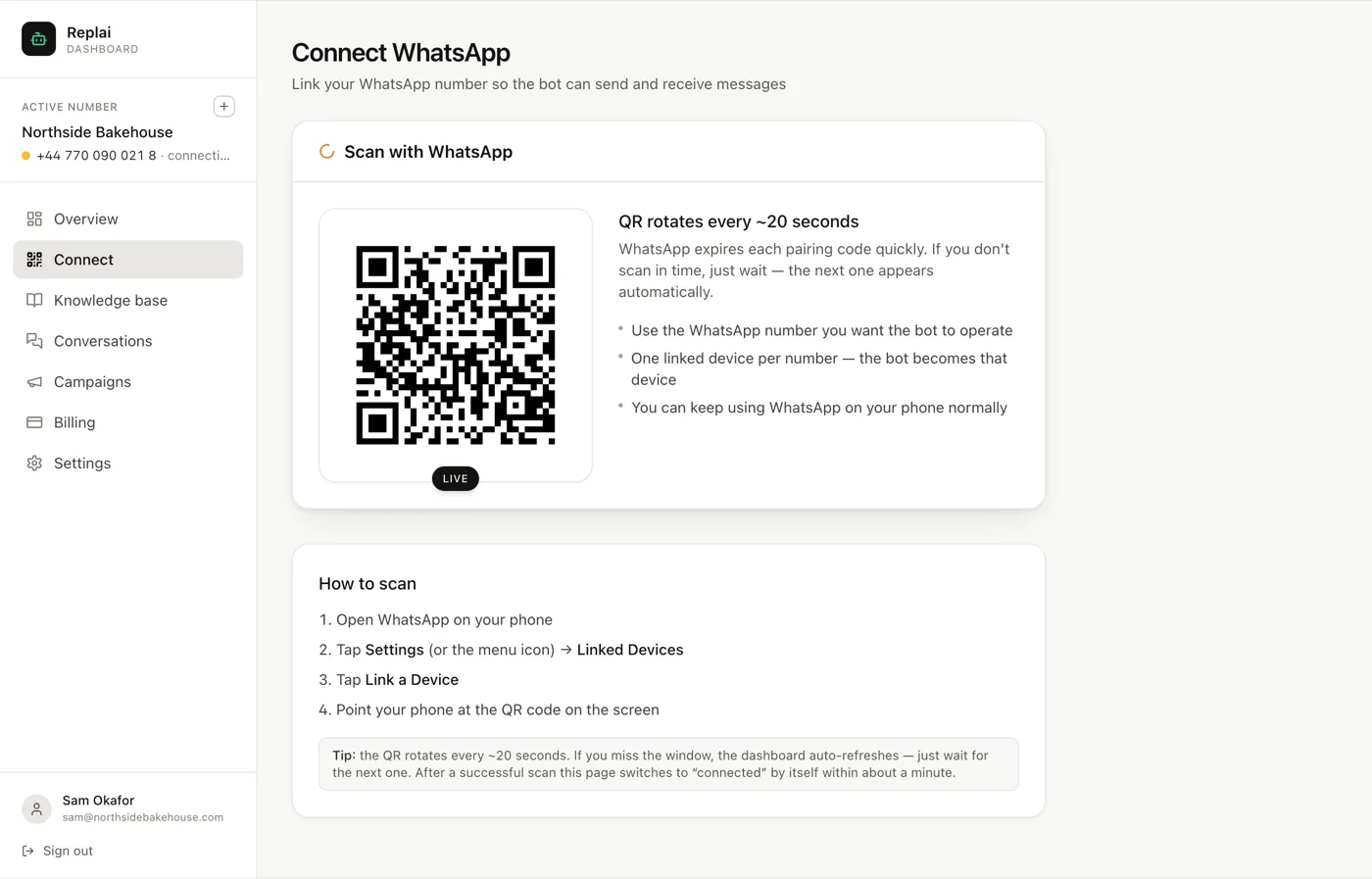
The code rotates because WhatsApp expires each pairing code quickly. You do not need to press anything to get a new one, and there is no penalty for letting one expire while you find your phone.
Step 2: Open Linked Devices on the phone
On the phone that owns the number:
- Open WhatsApp
- Tap Settings, or the menu icon on Android
- Tap Linked Devices
- Tap Link a Device
The camera opens. Point it at the QR on your computer screen.
If the QR is on the same phone, this cannot work. The camera has to look at the code, and a phone cannot look at its own screen. This is the most common failed first connection we see, and it looks like the product is broken when it is really just a geometry problem. If your laptop is not to hand, the Connect page has a button that emails you the link so you can open it on any other screen.
Step 3: Wait for connected
After a successful scan the page changes by itself, usually within a minute. You do not need to refresh.
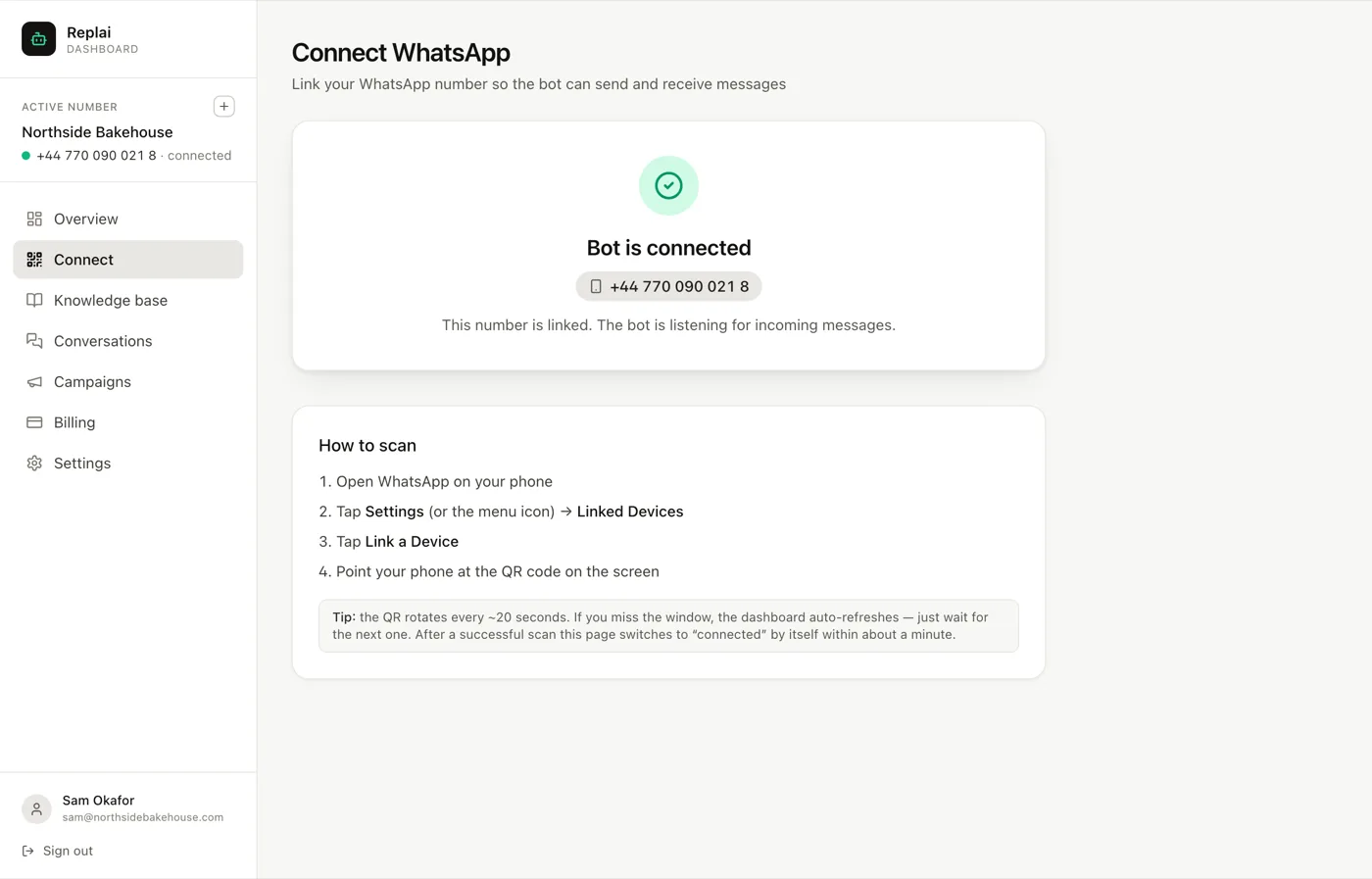
If it sits on pairing for more than two minutes, the scan did not register. Close the camera on your phone and scan the next code.
What the bot will and will not answer
By default Replai answers new customers straight away. A thread that already existed on the phone before you connected waits 5 minutes: the bot joins it only if nobody from your team has replied by then.
This default exists because the alternative is alarming: connect on a Tuesday afternoon and suddenly a bot is answering a conversation you have been having with a supplier for two years. Mark a contact like that Never answer this contact and the bot leaves them alone for good. To keep it out of every existing chat while you watch how it does, choose New conversations only under Settings, Auto-reply rules, and widen it later when you trust it.
If the session ends later
WhatsApp sometimes logs a linked device out. The usual causes are someone removing it under Linked Devices on the phone, or WhatsApp flagging the account.
When that happens Replai clears the stored credentials automatically and shows a fresh QR, so recovery is a rescan rather than a support ticket. You will see Session ended on the Connect page. Scan again and the bot resumes with its knowledge base, settings and history intact.
A number that gets logged out repeatedly is telling you something else, though. Repeated logouts usually follow heavy outbound sending, and the fix is in how you are using the number rather than in reconnecting it faster.
What to do next
A connected bot with an empty knowledge base will tell every customer it needs to check with the team, which is worse than not answering. The next guide fills that gap, and it is the one that decides whether any of this is useful.
Frequently asked questions
Will this log me out of WhatsApp on my phone?
- No. A linked device is an addition, not a replacement. Your phone keeps receiving and sending messages exactly as before, and you can keep using WhatsApp Web at the same time. What changes is that one more device, the bot, is now also connected to the same account and can reply.
Can I scan the QR with the same phone that holds the number?
- No, and this is the single most common reason a first connection fails. The camera has to look at the code, and a phone cannot look at its own screen. Show the QR on a laptop or a second device. If you only have the one phone, use the email-me-this-link button on the Connect page and open it on any other screen.
What happens to my existing chats?
- They wait for you first. New customers get an answer straight away, but in a chat that was already on your phone when you connected, the bot waits 5 minutes and answers only if nobody from your team has replied. Mark friends, family or suppliers "Never answer this contact" and it leaves them alone for good. Prefer it to stay out of existing chats completely? Choose "New conversations only" in Settings, Auto-reply rules.
Why did it say the session ended?
- WhatsApp logged the device out. Usually someone removed it under Linked Devices on the phone, or WhatsApp flagged unusual activity. The saved credentials are cleared automatically and a fresh QR appears, so reconnecting is a rescan rather than a support ticket.
Do I need the WhatsApp Business API for this?
- No. That is the point of the linked-device approach: no Meta application, no business verification, no per-message fee, and it works with a normal WhatsApp or WhatsApp Business account. The trade-off is that it is unofficial, so the number has to be treated with more care than an API number would need.
Sources
- About linked devices, WhatsApp Help Centre, 2026-09-14
Keep reading
See it answer your own customers.
Pair your number, paste in what you know, and message it from another phone. Ten minutes, no card.