Quick answer
Open Settings, Integrations and press Set up with the plugin. Install the free ReplaiPM plugin in WordPress under Plugins, Add Plugin (search for ReplaiPM), then open WooCommerce, Settings, Replai and paste the delivery URL and secret. The connection confirms itself. Add a read-only API key afterwards if you want the bot to look orders up in chat.
- The plugin needs no API key and is the only route that captures abandoned checkouts.
- The API key is optional and adds order lookup in chat, previews with real orders, and tracking numbers.
- Both can be on at once, and on most stores both should be.
- Nothing sends until you turn sending on. Test mode routes everything to your own number first.
About 10 minutes
Before you start
- A WooCommerce store you can install plugins on
- The Growth plan or above
- A connected WhatsApp number
WooCommerce is the integration most Replai customers set up, and there are two routes into it that do different jobs. The page shows them side by side, which makes them look like alternatives. They are not.
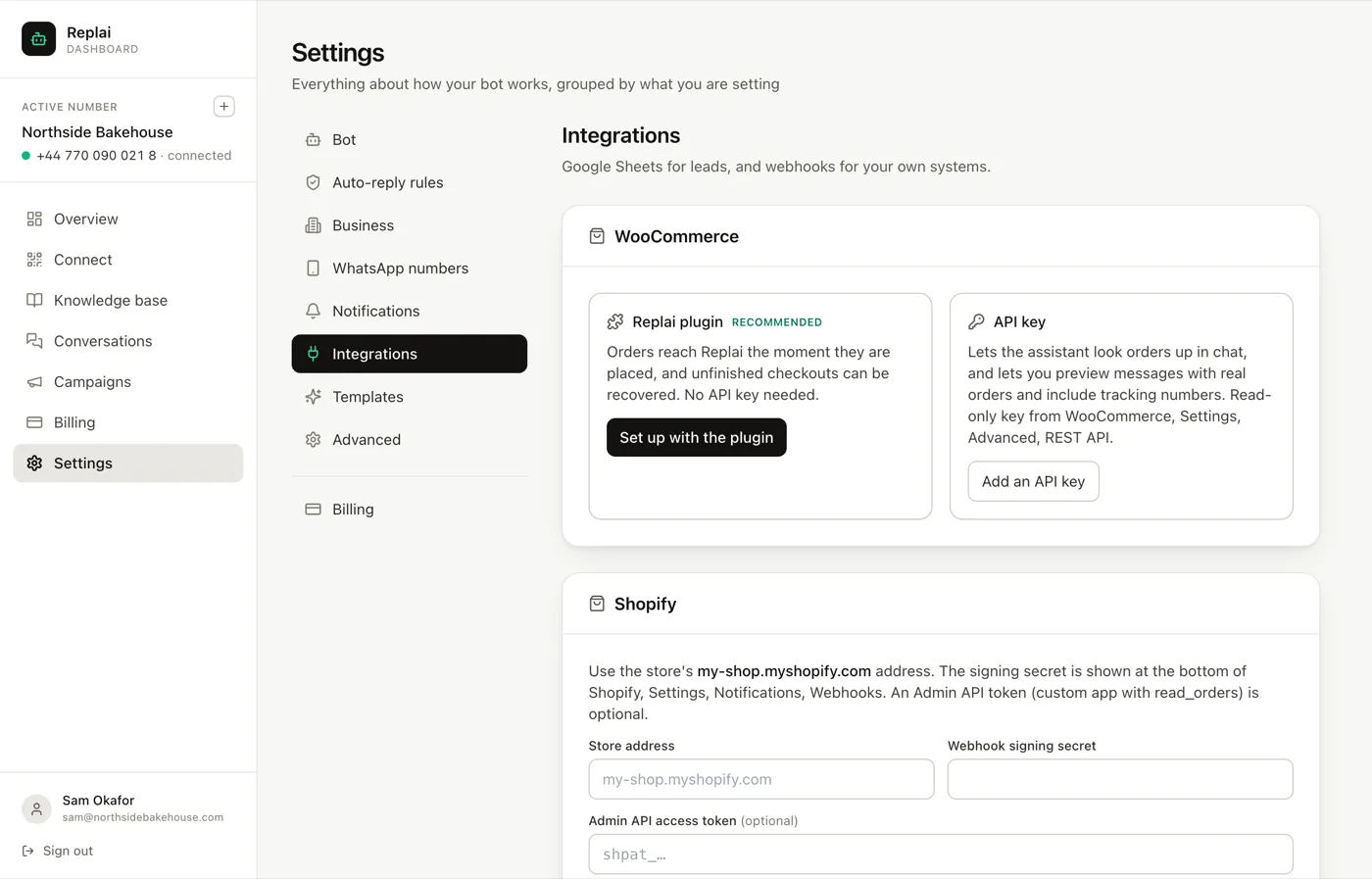
The plugin pushes events to Replai the moment they happen. It needs no API key and it is the only route that sees abandoned checkouts.
The API key lets Replai ask your store a question. That is what makes order lookup in chat work, and what lets you preview a message against a real order.
WooCommerce is on the Growth plan and above.
Step 1: Start the setup in Replai
Open Settings, then Integrations, and press Set up with the plugin.
Replai generates two things: a delivery URL unique to your workspace, and a secret that proves messages to it really came from your store.
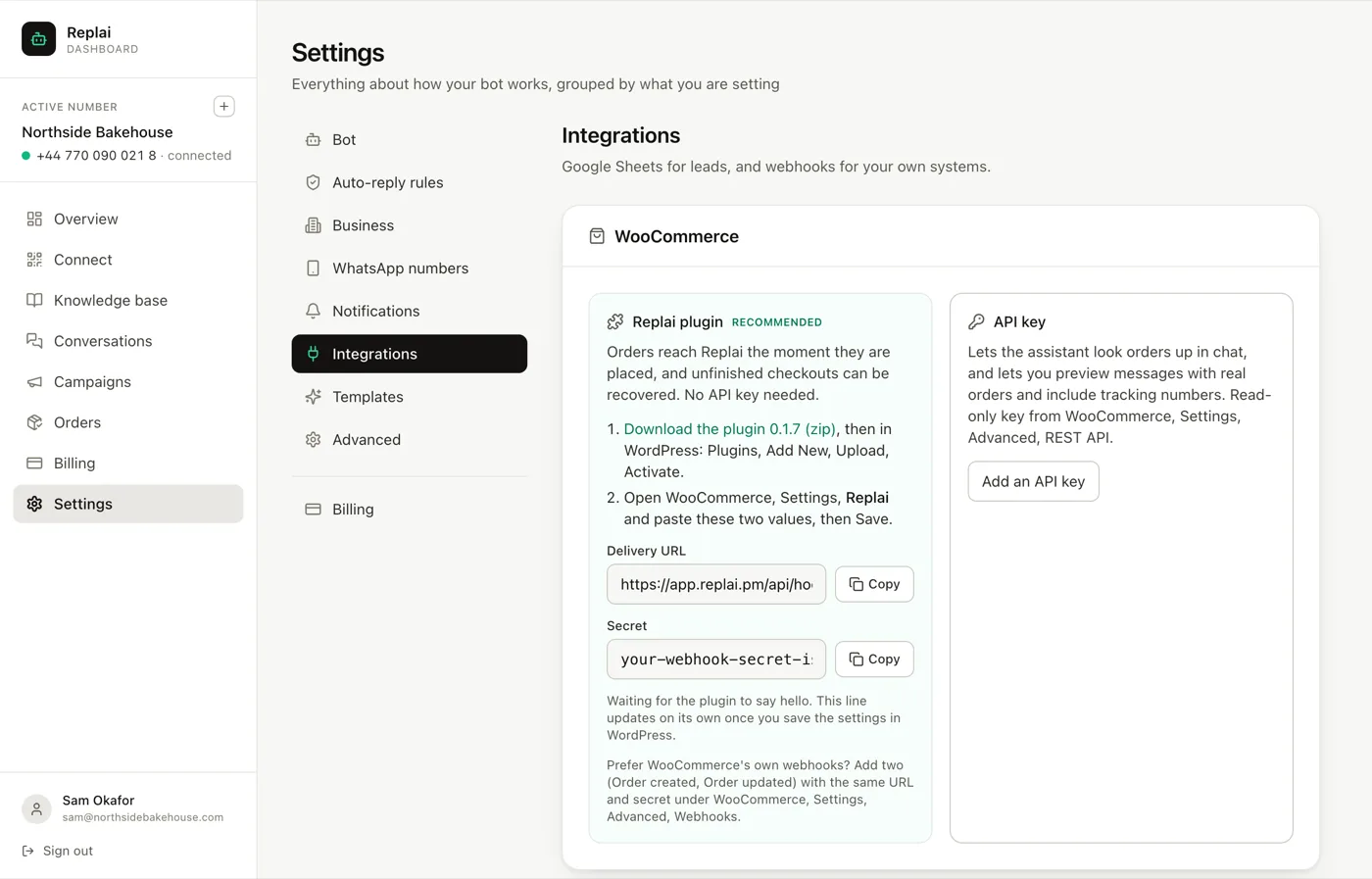
Treat the secret the way you would treat a password. It is what stops anybody who guesses your delivery URL from posting fake orders into your account.
Step 2: Install the plugin in WordPress
The plugin is free on WordPress.org, so WordPress installs it for you:
- Plugins, Add Plugin
- Search for ReplaiPM
- Install Now, then Activate
 ReplaiPM Order Messaging for WooCommerceFree on WordPress.org. In WordPress: Plugins, Add Plugin, search for ReplaiPM.
If an older copy from our zip is already installed, deactivate and delete it first: the two copies cannot be active at the same time.
Step 3: Paste the two values
Still in WordPress, open WooCommerce, Settings, Replai.
Paste the delivery URL into the delivery URL field and the secret into the secret field, then save.
Step 4: Wait for it to confirm itself
Go back to Replai. The line that said it was waiting for the plugin changes by itself once WordPress checks in, and it then shows the plugin version and when it was last seen.
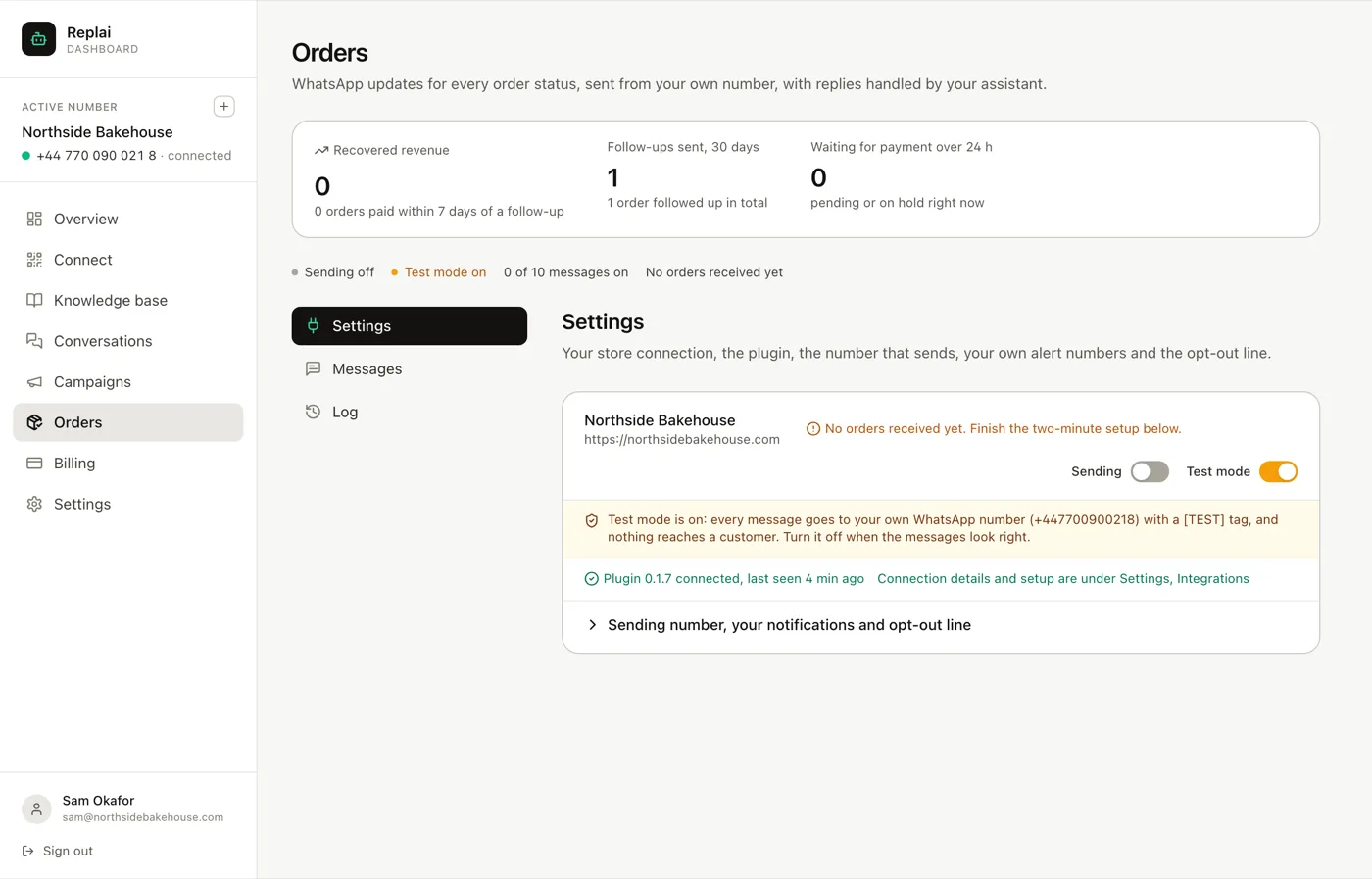
You will also notice Orders has appeared in the sidebar. That page did not exist before, because there was nothing for it to show.
If the line never changes, the usual causes are a mistyped secret, a security plugin blocking outbound requests from WordPress, or a staging site that cannot reach the internet.
Step 5: Add an API key, if you want lookup in chat
This is the optional half, and it is worth doing.
In WooCommerce go to Settings, Advanced, REST API and create a key with read only permission. Read only is not a suggestion: Replai never writes to your store, and a read-only key cannot refund or cancel anything even in the worst case.
Paste the consumer key and secret into the API key panel in Replai.
What this unlocks:
- A customer asking "where is my order" gets answered from live data rather than from whatever the last status message said
- You can preview your message wording against a real order instead of a placeholder
- Tracking numbers can be included in messages, because Replai can read them
What happens next, and what does not
Connecting a store does not message anybody. Two separate guards are on by default:
Sending is off. The connection works, events arrive, and nothing goes out.
Test mode is on. Every message goes to your own WhatsApp number with a
[TEST] tag on it, so you can read the exact text a customer would get.
That is deliberate. The worst version of this feature is one that starts messaging real customers the moment a plugin activates, with default wording nobody reviewed.
The next guide covers choosing which order statuses customers hear about and editing the messages before you switch sending on.
What to do next
If you run Shopify as well, the same Orders page serves both and the connection is a different five minutes. Otherwise, go and decide what the messages say.
Frequently asked questions
Do I need both the plugin and the API key?
- You need the plugin. The API key is optional and does a different job: the plugin pushes events to Replai as they happen, while the key lets Replai ask your store a question. Without the key, a customer asking where their order is cannot be answered from live data. Most stores end up with both.
Will connecting start messaging my customers?
- No. Sending is off when you connect, and test mode is on. Every message goes to your own WhatsApp number with a TEST tag until you are happy with the wording, then you switch sending on deliberately. Nothing reaches a customer by accident.
Can I use WooCommerce's own webhooks instead of the plugin?
- Yes. Add two webhooks, Order created and Order updated, under WooCommerce, Settings, Advanced, Webhooks, using the same delivery URL and secret. Order updates will work. What you lose is abandoned checkout recovery, because an unfinished checkout never becomes an order and so never fires an order webhook.
Which API key permission should I choose?
- Read only. Replai never needs to change anything in your store, and a read-only key cannot refund, cancel or edit an order even if it leaks. If the only option your setup offers is read and write, that is a reason to look again rather than to proceed.
Does the plugin slow my store down?
- No. It sends order events out to Replai and does not sit in the checkout path. If Replai were unreachable, the order would still complete normally, because the delivery is fire and forget rather than something the checkout waits on.
Sources
- WooCommerce REST API documentation, WooCommerce, 2026-09-14
Keep reading
See it answer your own customers.
Pair your number, paste in what you know, and message it from another phone. Ten minutes, no card.