Quick answer
To send WhatsApp order notifications from WooCommerce without the Business API, pair your shop's WhatsApp number to Replai by QR, install the free ReplaiPM plugin from WordPress.org, paste the delivery URL and secret into WooCommerce, Settings, Replai, then on Replai's Orders page pick the statuses, edit each message with the field picker and press Send me a test. Orders arrive the moment they are placed; messages go out from your own number, 5 to 10 seconds apart.
- Two ways to connect: the plugin (no API keys, orders arrive instantly) or a read-only API key plus two webhooks. Both can be on at once.
- Messages are set per order status using your store's own status names, custom ones included.
- Test mode is on by default: every message goes to your own number with a [TEST] tag until you switch it off.
- No Meta application, no template approval, no per-message fee; the number stays on your phone.
A WooCommerce store's WhatsApp inbox fills with the same question in three forms: did you get my order, has it shipped, where is it. Every one of those messages is answerable before it is asked, from data the store already has. This guide connects the store to Replai so the update goes out from the shop's own WhatsApp number the moment the order status changes, with the tracking number filled in, and the customer's reply lands in the same inbox.
The whole setup takes about ten minutes. Nothing is sent to a customer until you switch test mode off.
What you need before you start
- A Replai workspace on the Growth plan or a trial, with your shop's WhatsApp number paired (Connect, scan the QR with the phone that holds the number).
- Admin access to your WordPress site with WooCommerce installed. The plugin was tested on WooCommerce 10.5 and works on any recent version.
- Five minutes with your own phone nearby, because the first message you send will be to yourself.
Step 1: copy the delivery URL and secret
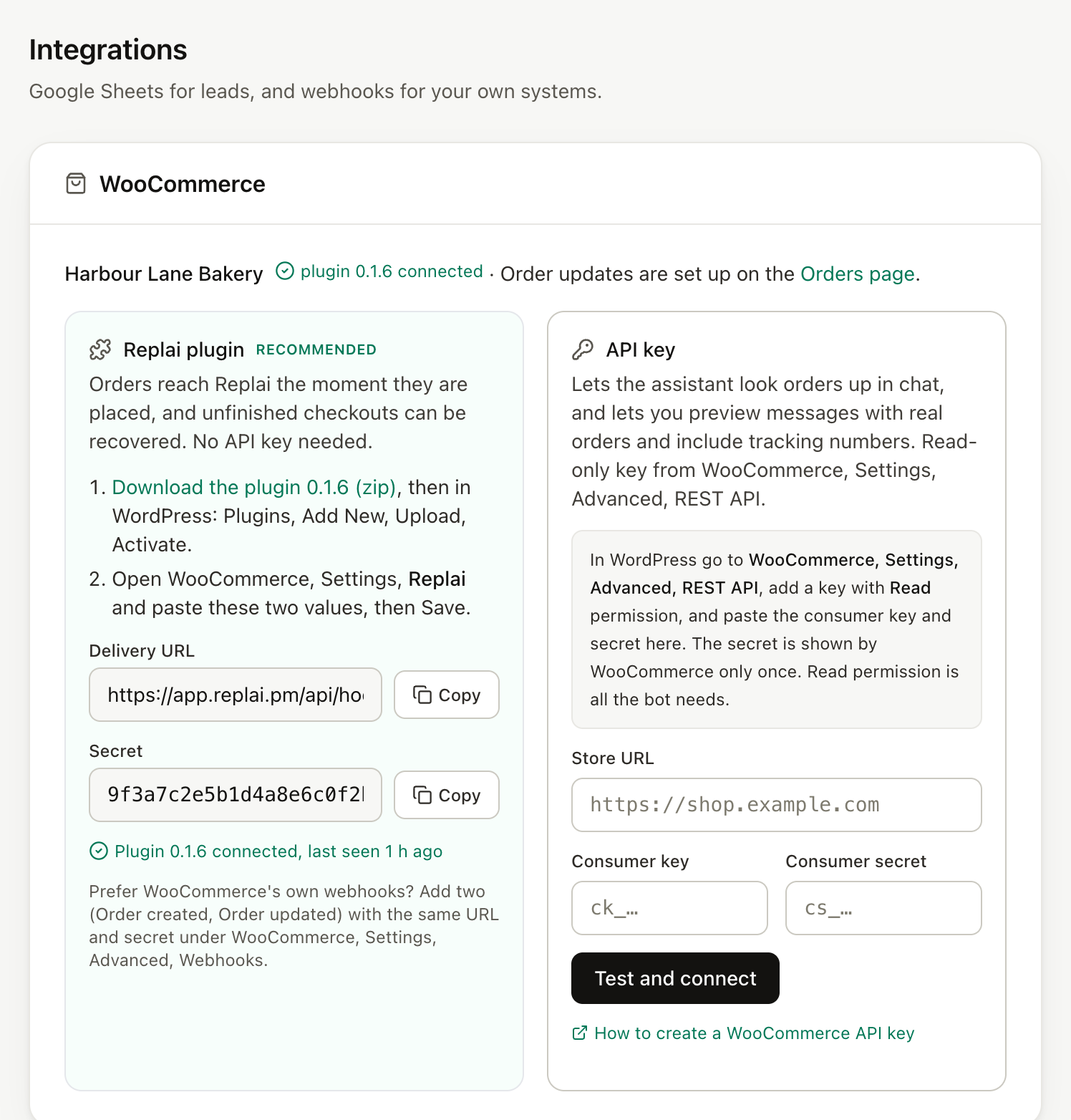
In Replai, open Settings, then Integrations, then WooCommerce. The card offers two ways to connect. Choose the plugin and copy the delivery URL and the secret shown in the card. Keep that tab open.
Step 2: install it in WordPress
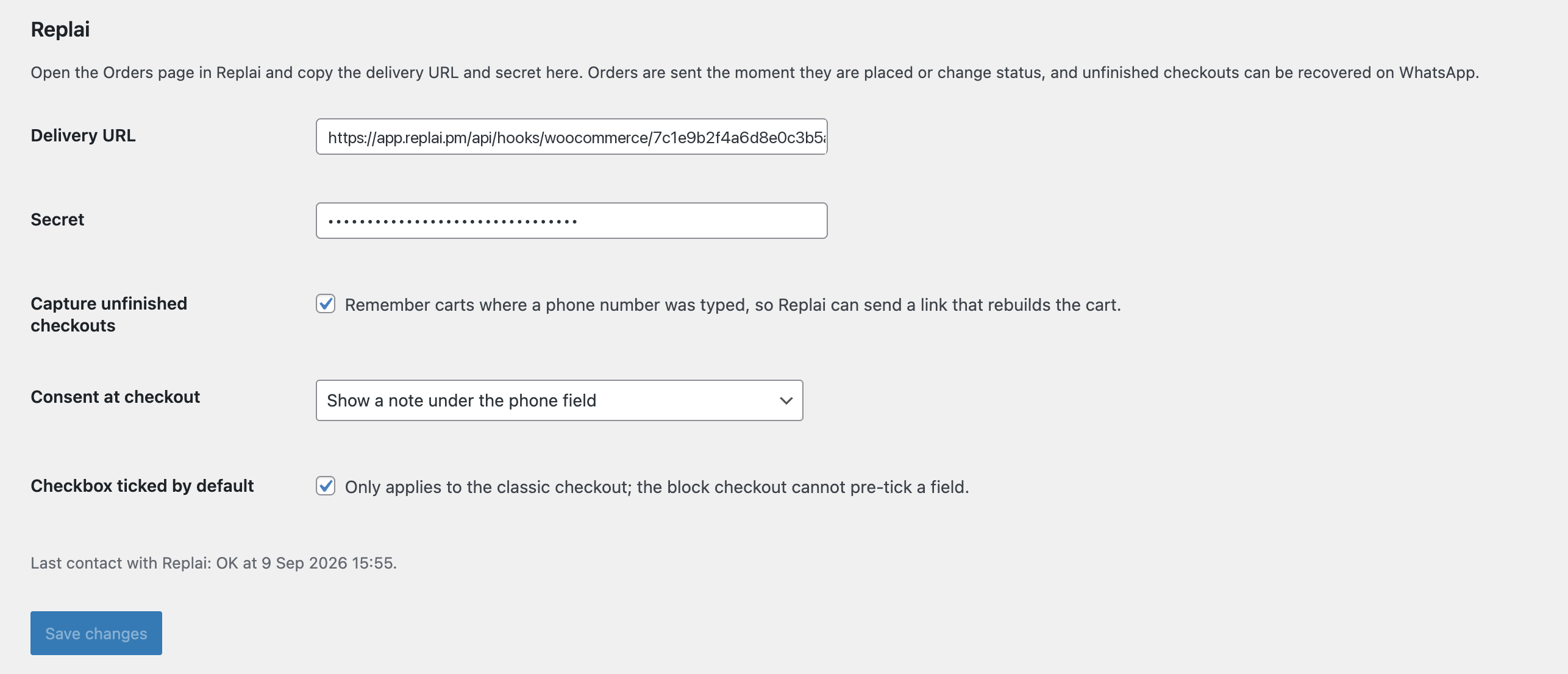
In WordPress go to Plugins, Add Plugin and search for ReplaiPM, then Install Now and Activate. The plugin is free on WordPress.org. Then open WooCommerce, Settings, and the new Replai tab. Paste the delivery URL and the secret, save.
 ReplaiPM Order Messaging for WooCommerceFree on WordPress.org. In WordPress: Plugins, Add Plugin, search for ReplaiPM.
That is the entire integration. No API keys, no webhooks to configure by hand. From this moment every new order and every status change is delivered to your workspace, signed with the secret so nothing else can post to it. Later versions of the plugin show up on the Plugins page with Update now, like any other plugin.
Step 3: check the connection
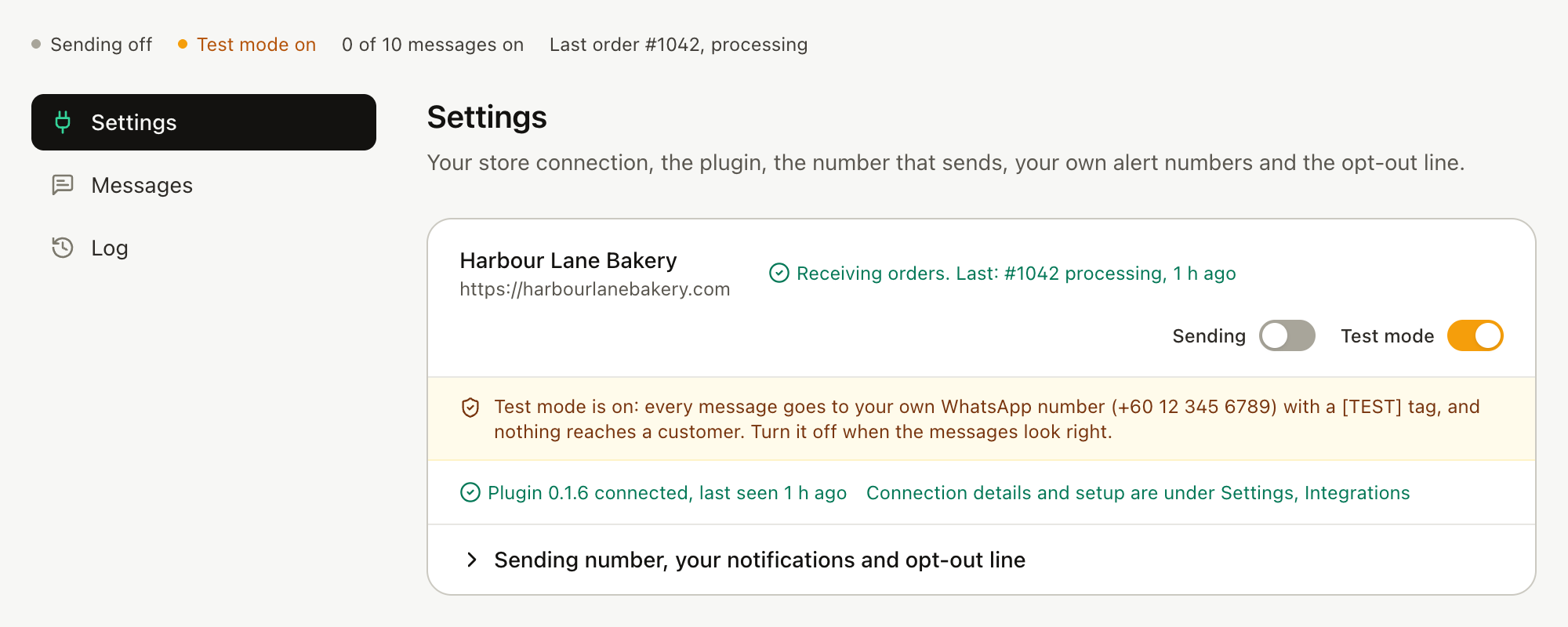
Back in Replai, open Orders. The Settings tab shows the plugin as connected, with the store's name and the time of the last event. If it says waiting, place a test order in your store or change the status of an existing one, and the line updates within seconds.
Step 4: pick the statuses and write the messages
The Messages tab lists your store's order statuses using the names your store uses, custom statuses included. Switch on the ones you want to message. Most stores start with three: order received, shipped, and ready for pickup or delivered.
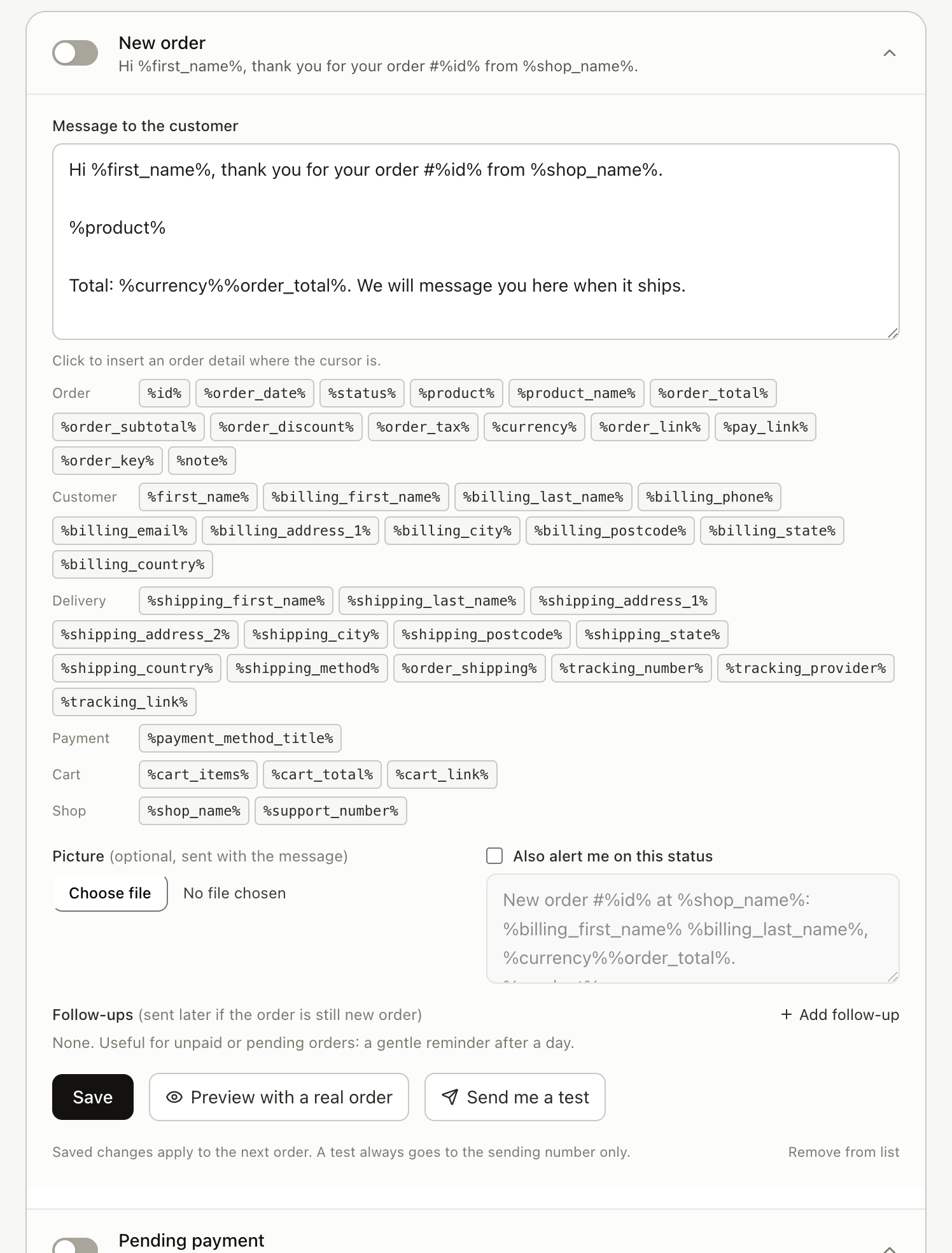
Each status has ready-made text. Click into it to edit, and click a field to insert it at the cursor: order number, first item, totals, tracking number, courier, tracking link, pay link, first name, shop name and the rest. A shipped message usually looks like this:
Your shop
What the customer receives, sent from your number
Fourteen more, one per status, are in the templates guide. Optional: attach a picture to any message, and add the opt-out line (required on Growth, optional on Pro) so a customer can reply STOP.
Step 5: send yourself a test
Every card has Send me a test. It sends that status message to the shop's own number, tagged [TEST], with sample values in the fields. If you connected the API key as well, Preview with a real order fills the message with a real order's number and tracking, so you see exactly what a customer would.
Read it on your phone. If the courier name is missing, your shipping plugin is not writing tracking to the order yet; Replai reads the tracking number, courier and link that shipment-tracking plugins store on the order, so add them there.
Step 6: switch test mode off
Test mode is on for every new connection: until you turn it off, every message, including ones triggered by real orders, goes to your own number instead of the customer. When the messages read right, turn it off on the Settings tab. From then on customers get them, one per order and status, at a human pace.
Follow-ups for unpaid orders and abandoned carts
Two more switches on the same page pay for the plan on their own.
Unpaid, on-hold and failed orders. Add a follow-up "after N hours" to the pending status with the pay link field. It is sent only if the order is still unpaid, checked live against the store, and cancelled within seconds of payment. Follow-ups respect quiet hours (22:00 to 08:00 in the store's time zone by default); immediate updates do not, because the customer expects them.
Abandoned carts. The plugin remembers a cart once a phone number is typed at checkout, with a consent note or a checkbox you choose. After 60 minutes by default, the customer gets a link that rebuilds the exact cart on any device and opens checkout with the phone prefilled. The message is cancelled if an order is placed. The Orders page shows recovered revenue: orders paid within 7 days of a follow-up.
The other way to connect: API key and webhooks
If you would rather not install a plugin, or you want order lookup in chat, WooCommerce, Settings, Advanced, REST API can issue a read-only key. Paste it into the WooCommerce card in Replai, then add two webhooks in WooCommerce (Order created and Order updated) pointing at the delivery URL the card shows, signed with the secret. The key adds order lookup and Preview with a real order; the webhooks deliver events. Both methods can run at the same time.
Why not the WhatsApp Business API?
Most WooCommerce WhatsApp plugins send through the WhatsApp Business Platform. That route needs a dedicated number that is not on any phone, Meta's approval for every message template, and a per-message fee for every utility message delivered, outside a customer's 24-hour service window since 1 July 2025 and inside it too since 1 October 2026 (Meta for Developers, 2026). For a store sending a few hundred updates a month the fees are small; the approval step and the second number are the real cost, and the replies go to a separate inbox.
Sent from your own number, the wording is yours, there is no fee, and the reply to "where is it?" is answered in the same thread by the assistant, which knows the last order the customer was messaged about. The trade-off is that the connection is unofficial. Replai handles that with the pacing gate: 5 to 10 seconds between messages, hourly and daily caps that queue rather than drop, one message per order and status, and STOP handled automatically. The ban guide covers what the restriction risk actually looks like.
WhatsApp Business app users are a large audience for this: the app passed 200 million monthly active users in 2023 (TechCrunch, 2023), most of them small shops answering order questions by hand.
Related
- WhatsApp order updates for WooCommerce and Shopify
- WhatsApp order confirmation and update messages: 14 templates
- WhatsApp customer service for your online store
- WhatsApp chatbot without the Business API
- WhatsApp broadcast limits per hour and per day
Frequently asked questions
Does the plugin need a WhatsApp Business API account?
- No. The plugin only delivers order events to your Replai workspace. Replai sends the messages from the WhatsApp number you paired by QR, the same way WhatsApp Web pairs. There is no Meta application, no dedicated number and no template approval. The connection is unofficial, which is why every message is paced and capped.
Does it work with custom order statuses?
- Yes. Statuses are read from your store, including custom ones such as Transporting or Ready for pickup, and any new status is learnt from the orders the store sends. If you renamed Completed to Shipped, the Orders page shows Shipped, and the message for it goes out when your store sets it.
Will fifty orders marked shipped at once send fifty messages in a burst?
- No. Messages from a number go out 5 to 10 seconds apart and share an hourly and daily cap with campaigns, 30 an hour by default and 500 a day on Growth. A bulk change trickles out over several minutes. When a cap is hit the messages wait; none are dropped.
Do I still need the API key if I use the plugin?
- Not for sending. The plugin delivers orders on its own. A read-only API key adds two things: order lookup inside chat, so a customer asking about an order is answered from live store data, and Preview with a real order, which fills a message with a real order's tracking number before you switch it on.
How does the plugin get updates?
- New versions show on the WordPress Plugins page with an Update now button, like any other plugin. Nothing to re-download from the dashboard.
Sources
- WhatsApp Business Platform pricing, Meta for Developers, 2025-07-01
- WhatsApp Business crosses 200M MAUs, introduces personalized messages feature, TechCrunch, 2023-06-27
Keep reading
Article
WhatsApp abandoned cart recovery for WooCommerce that rebuilds the cart
Article
WhatsApp chatbot for cash-on-delivery orders: confirm the address, cut the fake orders, keep the human for payment
Article
How to connect ChatGPT to WhatsApp Business: the routes that exist, what Meta bans, and what each costs
Tutorial
How to connect WooCommerce to Replai
See it answer your own customers.
Pair your number, paste in what you know, and message it from another phone. Ten minutes, no card.